

Forgetting your Samsung phone passcode is a very stressful problem. You might feel trapped when your own device refuses to let you in. Entering the wrong code too many times will only make things much worse. Some screens mean a simple phone lock while others signal stronger account protection.
Therefore, a smart plan helps you get back into your phone quite quickly. Moreover, knowing the difference saves both time and effort. This guide explains safe ways to unlock your Samsung device using trusted methods. You will also learn when guided tools like Dr.Fone Screen Unlock become useful.
Part 1. Understand What the Samsung Passcode Screen Really Means
Many people see the passcode screen and think their Samsung phone is locked. In reality, this usually means a simple screen lock that protects your local data. It is not the same as a Google verification screen shown during setup time. The phone is only asking for the PIN, pattern, or password you created before. This layer works offline and securely stores your personal contacts and files.

If you remember your code, unlocking takes only a few seconds without extra tools. When forgotten, you can still recover access using safe device unlock options. Sometimes, Android bypass lock screen software helps when you cannot use official features. Before starting, always confirm that your phone is locked with the screen passcode.
Part 2. Seeing “Verify Your Google Account”? That’s FRP and Needs a Different Fix
Seeing a Google verification screen means your Samsung phone has active protection. This security feature is called Factory Reset Protection or the FRP lock. It appears after someone resets a device without removing the account first. You must enter the original Google email and password to proceed. This is much stronger than a simple PIN or a pattern lock.

Alongside, you cannot skip this step by just restarting your mobile phone. This process ensures that only the real owner can use the device. Some people try to use Samsung’s hidden codes to bypass this screen. However, these codes rarely work for modern security updates on new phones. You will need a specific solution designed for this cloud security layer.
Part 3. Using Official Samsung Screen Unlock Methods First
Before exploring other options, it is wise to try official recovery methods first. These methods explain how to unlock Samsung phone without passcode using the official methods:
Method 1. Use The Previous Screen Lock Method
This method lets you unlock your Samsung using your previous PIN, password, or pattern. Yet, it works only on devices running One UI 6.1 or later. You can use it once per lock type right after changing your credentials. The system securely stores your old screen lock data for only 72 hours, after which it becomes unavailable for unlocking. Thus, go through the given guide to unlock your phone:
Step 1. Upon entering the wrong PIN or pattern at least 5 times, tap “Forget PIN.” When prompted, enter the previous “PIN/Password/Pattern” and tap “OK.”
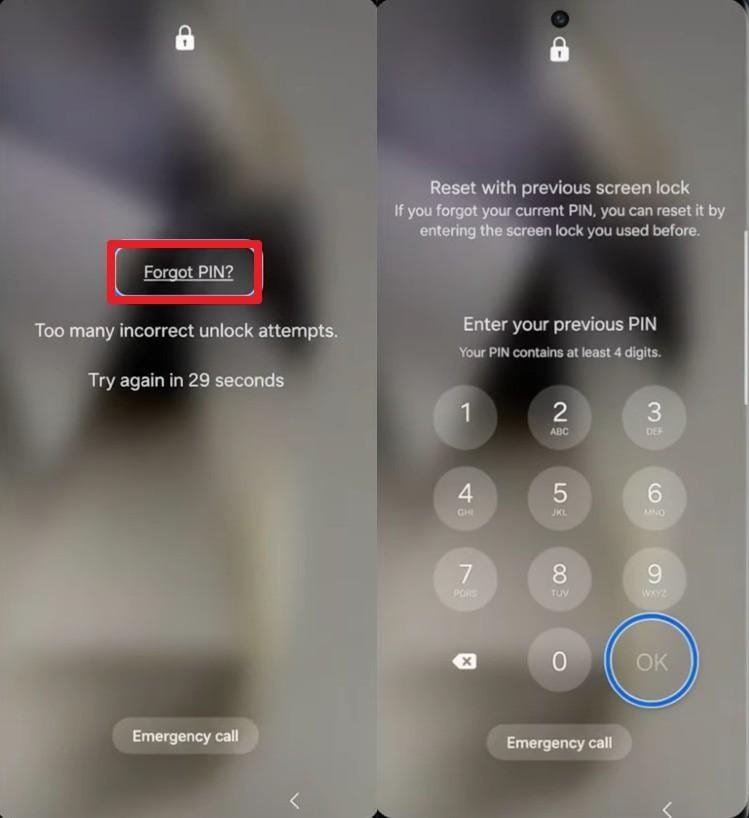
Step 2. Here, choose a new lock type like “PIN” and enter a new “PIN” to unlock Samsung.

Method 2. Factory Reset Your Samsung
A factory reset will wipe all personal data from your Samsung device. This method resets the phone to its original condition. It is a very effective way to remove any forgotten screen lock. However, you will lose every photo and contact stored on the phone. Moreover, it does not require Android bypass lock screen software and follows official recovery rules. Take guidance from the instructions to use this approach:
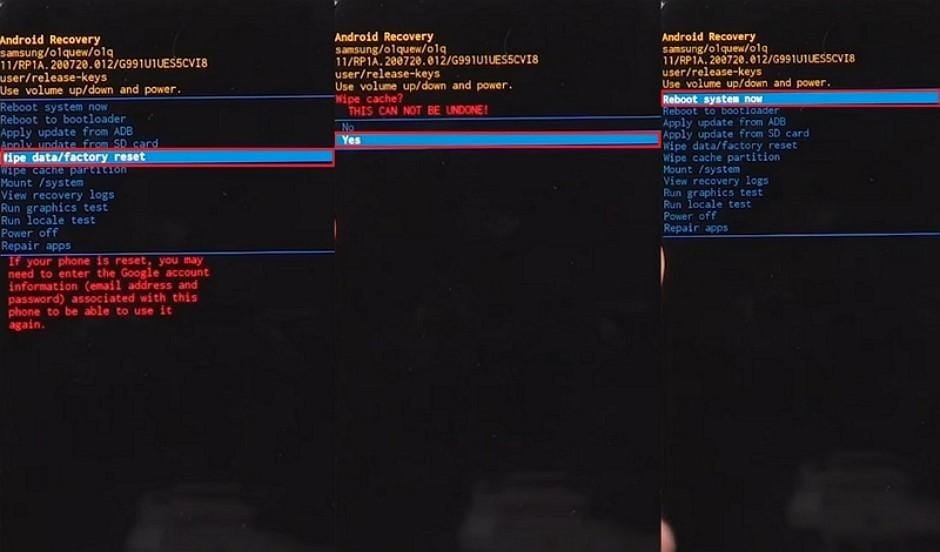
Step 1. Press and hold the “Power + Volume Down” buttons, then choose “Power off.” After that, you need to enter your device into Recovery Mode according to your model:
- For Phones without a Home button: Hold “Volume Up + Power” for a few seconds until the Samsung logo appears.
- For Models with a Home button: Keep pressing “Volume Up + Home + Power” until the Recovery screen appears.

Step 2. Next, use Volume keys to highlight “Wipe Data/Factory Reset,” then press the “Power” key to select. On the next screen, select “Yes” and then choose the “Reboot System Now” option.
Part 4. When to Use Third‑Party Samsung Unlock Tools
Sometimes, official recovery options fail or require conditions your Samsung device doesn’t meet. In such cases, using dependable third‑party tools like Dr.Fone Screen Unlock becomes practical. These tools work across multiple Android versions and simplify complicated procedures. Below are several reasons why external Samsung unlock tools are worth considering:
- No Access: When you can’t unlock the phone using a PIN, an external tool helps. It removes the screen lock without affecting essential internal data protection structures.
- Unsupported Model: Old or rare Samsung models may be excluded from official unlock updates. Yet, unlock software ensures compatibility through regular patching and adjustments.
- Broken Screen: A program assists when touchscreen issues prevent entering your passcode. It connects via computer, enabling navigation using keyboard or recovery options.
- Data Safety: You want to unlock your older Samsung phone without exposing your files. Some professional tools can remove the screen lock while keeping data secure from hackers.
- Time Saving: Manual processes can waste many hours with repeated failed unlock attempts. Automated tools finish the recovery more efficiently using guided accuracy.
Part 5. Using Dr.Fone Screen Unlock for Supported Samsung Models
When official methods fail, and data loss isn’t an option, you need a powerful and reliable recovery solution. Here, Dr.Fone – Screen Unlock (Android) provides a professional way to regain your access. This trusted Android bypass lock screen software works on the latest Android 16. It can remove every type of lock screen in only 5 minutes on your Samsung.
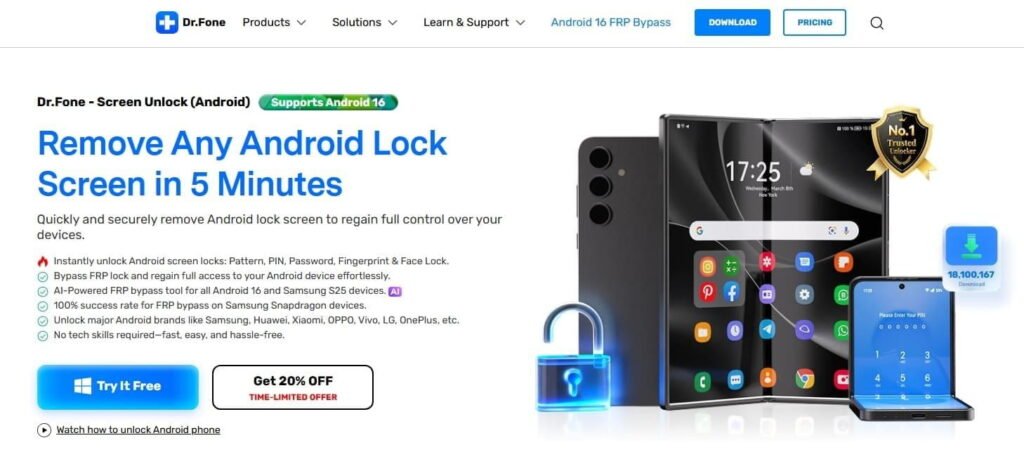
It supports the new Samsung S25 and many other popular Galaxy phone models. One amazing feature is the ability to unlock some Samsung phones without losing any personal data. You do not need technical skills to use this simple and guided interface. In addition, users can enjoy 100% success rates for removing these digital locks. Apart from Samsung, this software is compatible with 30+ brands for unlocking, like Xiaomi and Oppo.
Key Features
- FRP Bypass: Also removes Google verification to restore device access after resets.
- AI Assistance: Improves success rates on newer Samsung and Android devices intelligently.
- Offline Access: Performs unlock tasks without requiring constant internet connections.
Comprehensive Guide to Using Dr.Fone to Unlock Samsung Lock Screen
Using this professional software is a very easy and straightforward process. It safely removes your screen lock while keeping your device fully protected. Thus, you need to review these simple steps to regain access to your phone:
Step 1. Run the Screen Unlocker Program
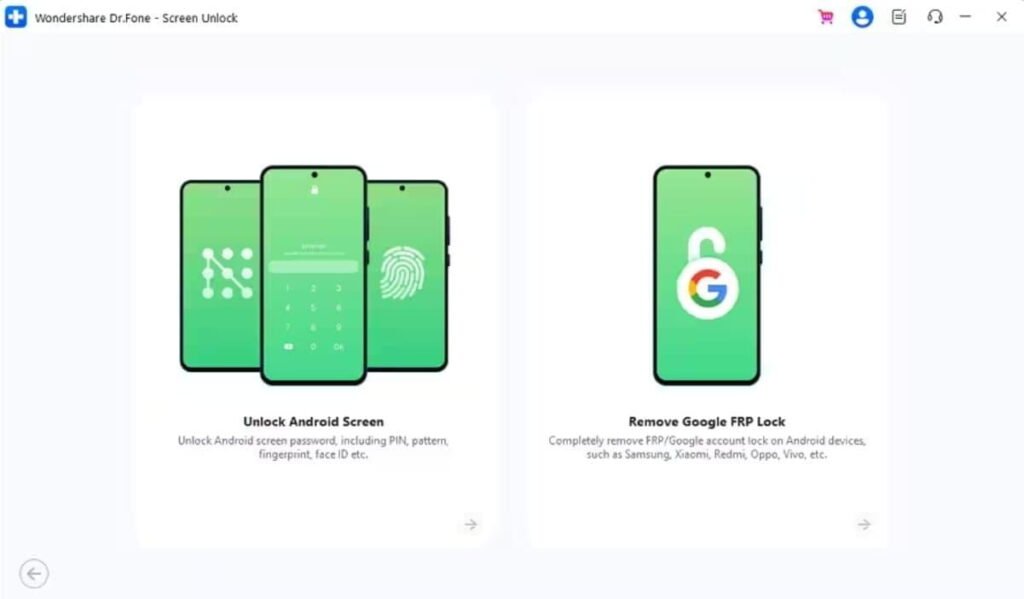
To initiate, head to the “Screen Unlock” feature from the “Toolbox” tab. Next, choose “Android” as your device type and then click “Unlock Android Screen.” Now, connect your locked Samsung to your PC in order to move forward.
Step 2. Add Your Samsung Phone’s Details For Unlocking
On the upcoming screen, select “Samsung” as your phone’s brand and choose “Remove Without Data Loss.” Now, input the required phone details, including “Device Model” and “Device Name,” and hit “Next.”

Step 3. Remove Screen Lock from Your Samsung
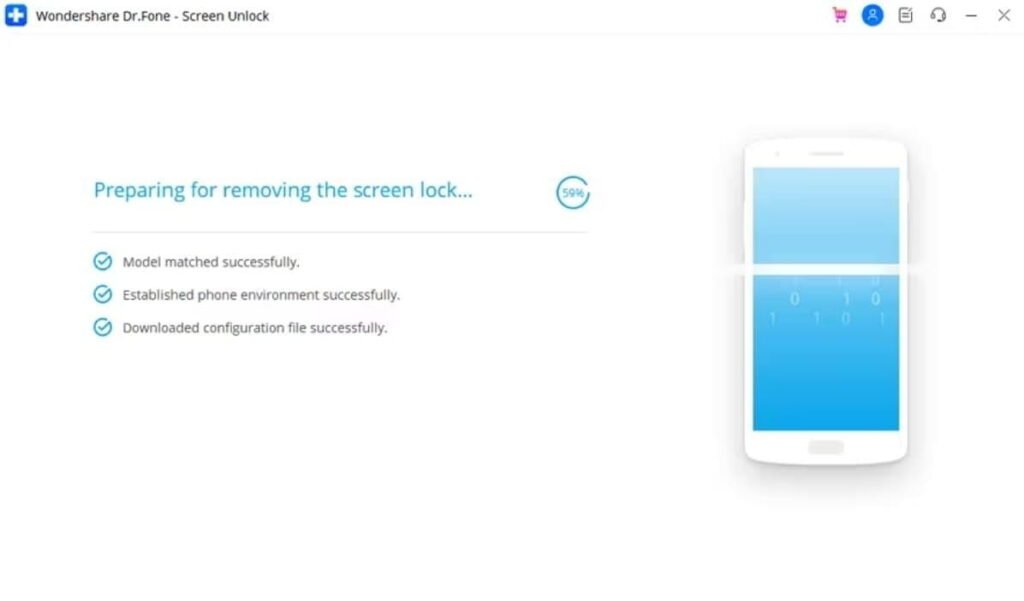
Input “000000” upon seeing a new prompt and press the “Confirm” button. After that, you need to put your phone into Download Mode by following the shown guide. When done, the program initiates unlocking your phone’s lock screen while showing the live progress.
Conclusion
In summary, choosing the right way to unlock your Samsung phone saves a lot of time. You should always start by checking if you have a simple screen lock. Then, try official steps first, but they have limitations. When those fail, and you need to keep your data safe, turn to Dr.Fone Screen Unlock. This tool removes locks fast without losing data on most Samsung models.
Also Read: A Detailed Review About BN6924878F