
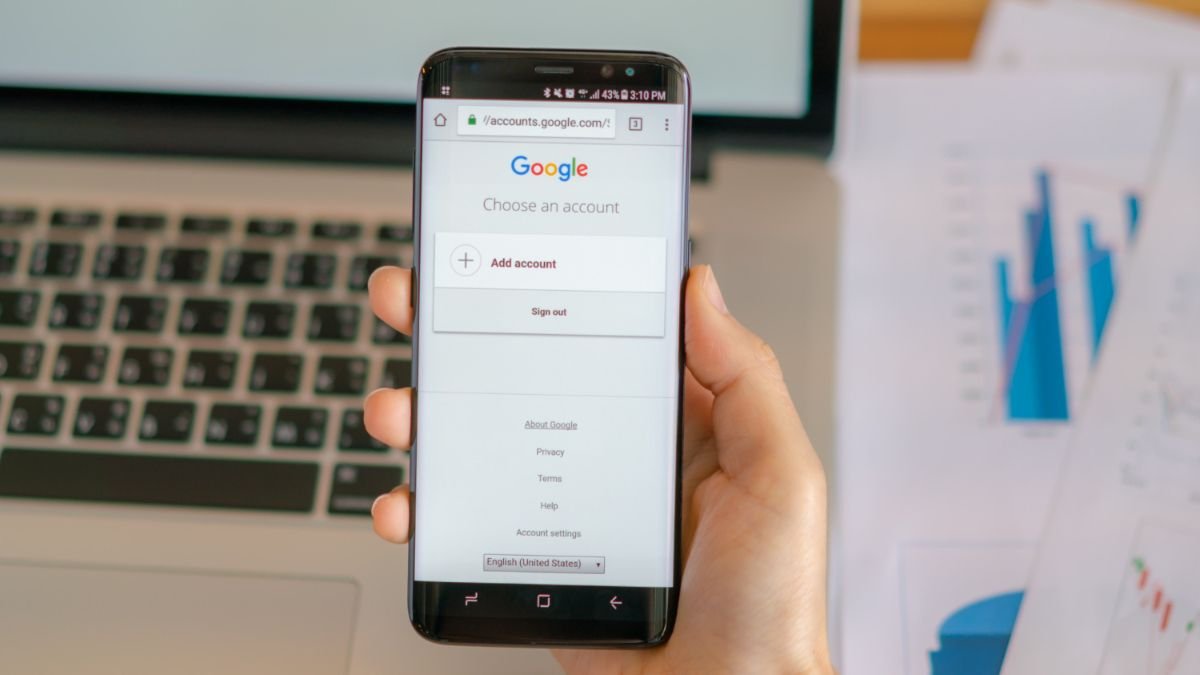
Gmail is the focus of daily online behaviors. A single account links up various services with Gmail and Google Drive, YouTube, Photos, Maps, and Chrome sync. Although it is more convenient to remain signed in, there are numerous instances when it is pivotal to sign out.
I have found myself having to log out of a device when changing devices, on a shared computer, selling an old phone, or enhancing the security of my account. Being aware of how to sign out in the correct manner will assist with avoiding unauthorized access and keeping personal information safe.
Sign-out of a Google account varies when using different devices. Android phones, iPhones, desktops, and shared devices all have a slight variation in their techniques. This tutorial includes all the major scenarios, and has more security tips that most articles do not consider.
The Google Support has indicated that one can sign out of Gmail itself on a desktop device or take away their Google account on a mobile device to sign out of the Google services.
Why You May Need to Sign Out of Your Google Account
Most people do not leave Google accounts on a day-to-day basis; only in some scenarios does it become significant. When a device is used by other family members/colleagues, being signed in can reveal emails, documents, browsing history, and saved passwords.
A second reason is an upgrade to a new computer or cell phone. Removal of account access prior to the sale, giving out, or recycling a device can also assist in making sure that not all personal information can be left unsecured. Google also suggests signing out of devices that are stolen or are no longer in use.
The most common misconception made by users is that selecting the close browser window traces them out of the browser. As a matter of fact, account sessions tend to be left open until an adequate process of signing out is done.
How to Sign Out of Google Account on a Computer
One of the easiest methods of signing out of a Google account is its desktop approach.
Open your browser and start with Gmail, Google Search, or any of the Google services. In the upper right-hand corner of the screen, please click on your profile picture. You will see a menu with your account information and what you can do.
Follow these steps:
- Tap on your profile picture.
- Select Sign Out.
- Wait until Google takes you to the sign-in page.
Google validates that this approach logs out of Gmail and other Google applications in that browser.
When several accounts are signed in at once, you might be given the choice to leave all accounts. In certain instances, Google lets people back out of all accounts prior to deleting a particular one.
What Happens After Signing Out?
After the sign-out, Gmail, Google Drive, Calendar, and other services will be authenticated once again. Bookmarks add up as do downloads to the device, and synced account data will be inaccessible until you re-sign in.
This particularly comes in handy when one is accessing a public library computer, office workstation, or an internet cafe.
How to Sign Out of Google Account on Android
Android devices process Google accounts in a different manner since the account is part of the operating system.
Google does not have a normal sign-out button; it can only be removed by the user of the device. This will bring the account to an end with Gmail, YouTube, Maps, Drive, and other Google applications.
To delete your Google account:
- Open Settings.
- Tap Accounts or Passwords & Accounts.
- Select Google.
- Choose the account you want to remove.
- Tap Remove Account.
- Confirm your choice.
Once removed, the account will still be accessible online and will still be active among other devices. Access to the Android device that is chosen is lost.
One of the many questions people raise is whether an account is destroyed when it is deleted, or whether emails or files are. The answer is no. It keeps your information secure in Google’s cloud and can be retrieved subsequently upon signing in.
How to Sign Out of Google Account on iPhone or iPad
Their sign-out capabilities come with Google apps on iOS devices.
On an iPhone or iPad, you can most likely handle accounts by managing them in the Gmail app. Removal of the Google account on the device or signing out is through account management settings.
The overall procedure involves:
- Open the Gmail app.
- Tap your profile picture.
- Select Manage Accounts on This Device.
- Choose the account.
- Remove or sign out of the account.
According to Google, restoration of an account on the device will delete the account sign-in after signing out of Google applications related to the account.
This technique comes in handy when temporarily lending a gadget to another or when responding to account sync problems.
How to Sign Out of Google Account Remotely
Remote sign-out is one of the most valuable safety options of Google. This comes in handy especially when you have forgotten to log out on another computer or have lost a device.
Google can enable people to see all the devices that are currently connected to their account and get them unconnected when they need them.
To exit the device offsite:
- Open your Google Account settings.
- Navigate to the Security section.
- Find Your Devices.
- Click Manage All Devices.
- Select the device you want to remove.
- Click Sign Out.
- Confirm the action.
As recommended by Google, it is advisable to look through the activity of your devices regularly to detect unfamiliar devices and enhance account security.
When Remote Sign-Out Is Most Useful
Remote sign-out would be needed in situations that include:
- Losing a phone.
- Forgetting to log out on a public computer.
- Selling an old laptop.
- Detecting suspicious account activity.
- Ending access on shared household devices.
This can be considered as one of the most useful tools in Google Account settings because many users do not focus on this feature until a security problem occurs.
How to Sign Out of Google Chrome
Other individuals mix up the closure of Chrome with the closure of their Google account. Though similar, they are not quite identical.
The Chrome synchronization enables passwords, bookmarks, history, and settings to travel with users across devices. In case the main issue is privacy, it is possibly enough to get out of Chrome.
To sign out of Chrome:
- Open Chrome.
- Click your profile icon.
- Select the sign-out option.
- Confirm when prompted.
This does not allow synchronization and maintains browser functionality. To avoid allowing access to synced information to others, security experts tend to advise people to leave the Chrome when using a shared computer.
Common Problems When Signing Out
One of the problems that users sometimes face is when trying to sign out of their Google account.
A typical problem is encountered when there is more than one Google account in use at the same time. To delete one particular account, Google might have to sign out of all accounts and then delete it in the browser.
The other problem is Android devices controlled by the administrators in the workplace. Corporate policies might limit removing of the accounts or they may demand extra account verification before they sign-out.
Browser extensions and syncing options may also be confusing as they automatically log users into Google services when they are out.
When issues arise, it is advisable to clear browsing cookies and cache in order to fix problems with account sessions.
Security Tips After Signing Out
One aspect of account security is signing out. Other controls could be very effective in minimizing the threat of unauthorized access.
I would always advise that the account activity should be reviewed whenever leaving the device that an individual is not familiar with. The security dashboard of Google provides detailed information about recent device activity and login attempts.
It may be to enforce the following security measures:
- Enable two-factor authentication.
- Update passwords regularly.
- Monitor related devices monthly.
- Deactivate access to old computers and phones.
- Avoid saving passwords on public devices.
- Browse using Incognito on shared computers.
These basic practices are an added security feature on top of the normal sign-out procedure.
Final Thoughts
One of the most basic, yet significant, online safety skills is knowing how to log out of a Google account. Desktop computer, Android phone, iPhone, or shared device, the proper sign-out technique can be used to protect emails, documents, passwords, and personal data.
Although most users benefit by being logged in so that they can operate effortlessly, closing their account when using social or public computers is one of the simplest methods to enhance internet security. The remote device management tools of Google can also give an opportunity to take access off the lost, stolen, and forgotten devices with ease whenever necessary.
Also Read: Android System User Data Locked: Meaning, Fixes & Privacy Insights