

The shift to a new phone brings excitement but also hidden worries about data. Many users realize too late that their WhatsApp data doesn’t move on its own. Without a clear transfer plan, those memories and chats can disappear in minutes. That’s why choosing the right method matters before making the switch.
Tools like Dr.Fone – WhatsApp Transfer help you move everything in a few steps. With the right steps, you can keep all your messages and even favorite stickers intact. Moreover, planning your WhatsApp transfer ensures an effortless phone upgrade, avoiding frustration. So, this guide explains how to move your messaging app data without hassle.
Part 1: What WhatsApp Transfer Means: Moving Chats, Media & Account Data
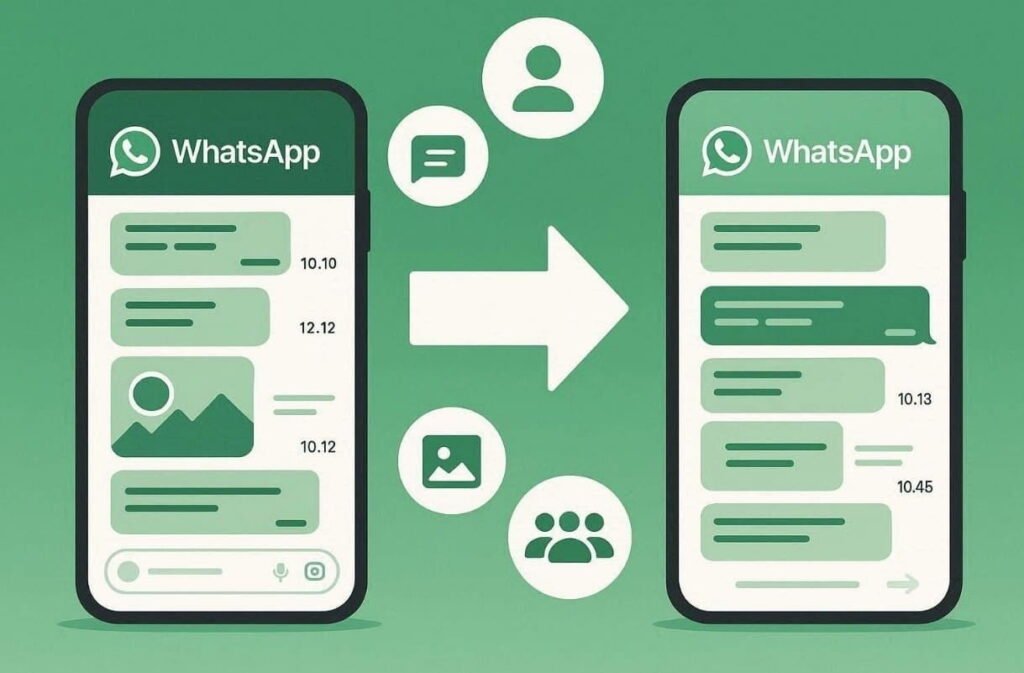
WhatsApp transfer means moving your complete WhatsApp account and all linked data. It includes messages, media files, and even account details without losing anything. When you change devices, the transfer keeps your chats, groups, and communities intact. This ensures that conversations appear exactly as they were on your old device.

Plus, profile information and privacy preferences are also preserved in a complete WhatsApp transfer. Many users also ask how to transfer from one WhatsApp stickers to another, which follows similar migration steps. A proper WhatsApp transfer protects both memories and personalization.
Part 2: Why Changing Phones Without Backup Can Cause WhatsApp Data Loss
Many users switch phones without checking if their WhatsApp data is backed up. The app creates automatic backups to Google Drive or iCloud around 2:00 AM or 3:00 AM daily. Any messages or multimedia added afterward disappear on the new device if you switch. Therefore, WhatsApp cannot transfer everything automatically without confirming a backup.
Skipping a backup also affects temporary features like “view once” media. Knowing how to save view once on WhatsApp before switching ensures these files stay accessible. Also, account settings, privacy preferences, and notification choices might not move either. Thus, preparing a backup or using a proper transfer tool reduces the risk of losing data.
Part 3: WhatsApp Sticker Transfers: What Moves Automatically and What Doesn’t
WhatsApp sticker transfers during phone upgrades surprise users with missing packs or favorites. Some packs and favorites transfer, while others may be lost. Knowing how to transfer from one WhatsApp stickers to another helps ensure nothing disappears:
| Transfer Scenario | What Moves | What Doesn’t Move |
| Same OS Backup Restore (Android→Android, iOS→iOS) | Official WhatsApp sticker packs, recently used stickers, and favorites linked to WhatsApp backup | Most third-party app stickers, unsaved custom stickers, cache-only or incomplete packs |
| Cross-Platform Migration (Android↔iOS) | Chats and basic media; official stickers may re-download after restore | Sticker favorites, custom stickers, third-party packs, sticker usage history |
| Cloud Backup Only (Google Drive / iCloud) | WhatsApp-native sticker packs associated with the account | Third-party stickers, locally stored custom stickers, and older cache-based sticker data |
Part 4: The Role of Contacts in a Successful WhatsApp Migration
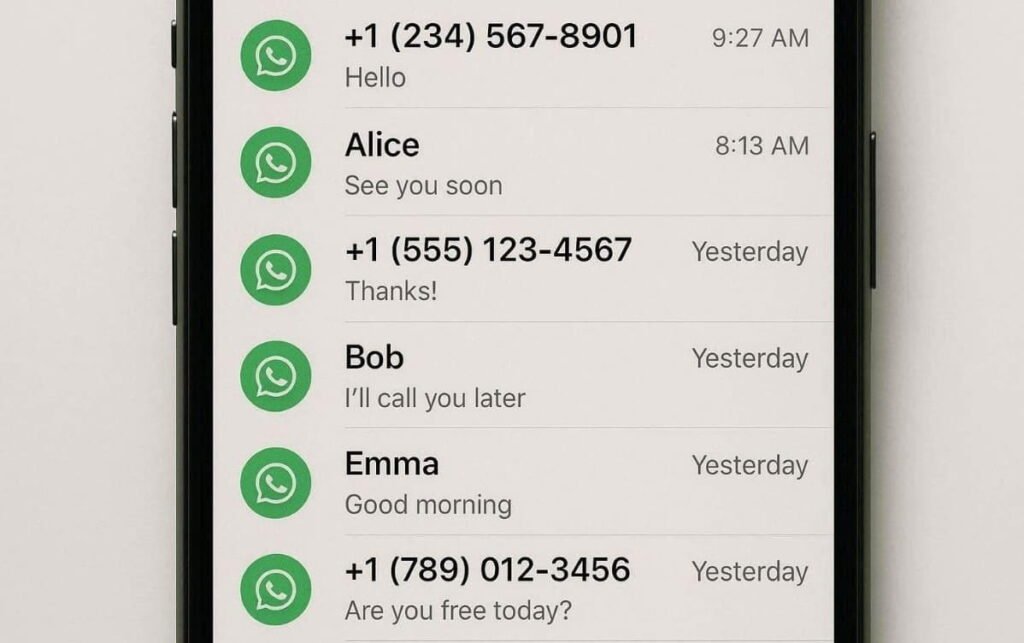
WhatsApp links every chat to a phone number stored within its database. The app reads your phone’s contact list to match those numbers with saved names. After migration to a new device, restored chats show numbers until contacts are synced properly. Missing or unformatted contacts leave chats displaying raw numbers instead of names. When the exact numbers exist in the new phone’s contacts, chats appear with familiar names.
Otherwise, users see only raw numbers even though messages are restored. Still, problems arise when contacts are not synced yet, or WhatsApp lacks permission to access them. Switching to a new SIM or number without updating contacts may create duplicates. Thus, knowing how to transfer contacts to new phone before restoring WhatsApp ensures that chat names display.
Part 5: How Dr.Fone Guides WhatsApp Transfer for a Smooth Phone Switch
Since upgrading phones can be stressful, Dr.Fone – WhatsApp Transfer is the best option. This dedicated program supports Android 16 and iOS 26 to ensure full compatibility. Users enjoy ultra-fast transfers across the iPhone 17 and Samsung Galaxy S25 series. It also offers to migrate all types of WhatsApp data, including photos and stickers.
While transferring, custom migration lets you move the needed files to save storage. In addition, its data merging feature combines old and current WhatsApp messages. Apart from that, Dr.Fone also handles WhatsApp Business chats between iOS and Android. Users can even preview call logs and choose individual ones to transfer.
Key Features
- Fast Scanning: Quickly detects WhatsApp data on old phones for immediate transfer readiness.
- Encrypted Transfer: Protects all WhatsApp data with end-to-end encryption during migration.
- Message Export: Lets you export WhatsApp chats to PDF and HTML for offline reference.
Guide to Transfer WhatsApp from One Phone to Another via Dr.Fone
Dr.Fone simplifies WhatsApp transfers across phones with clear, guided steps for beginners. Users also pair it with the Phone Transfer feature to learn how to transfer contacts to a new phone for complete setup success. Hence, follow the given guide to move chats and other data using this program:
Step 1. Access the Program’s WhatsApp Transfer
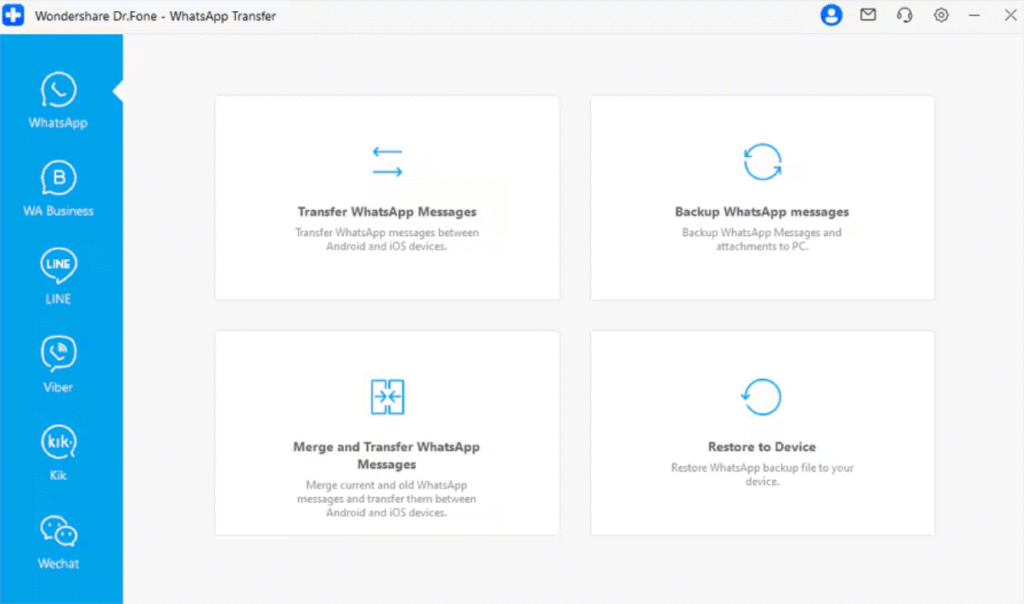
When you head to the “Toolbox” tab, opt for the “WhatsApp Transfer” feature. Afterward, click the “Transfer WhatsApp Messages” option and link both phones to the PC.
Step 2. Choose WhatsApp Data to Migrate
Once the phones are connected, select your desired data types like stickers, messages, call logs, and starred messages before clicking the “Transfer” button.
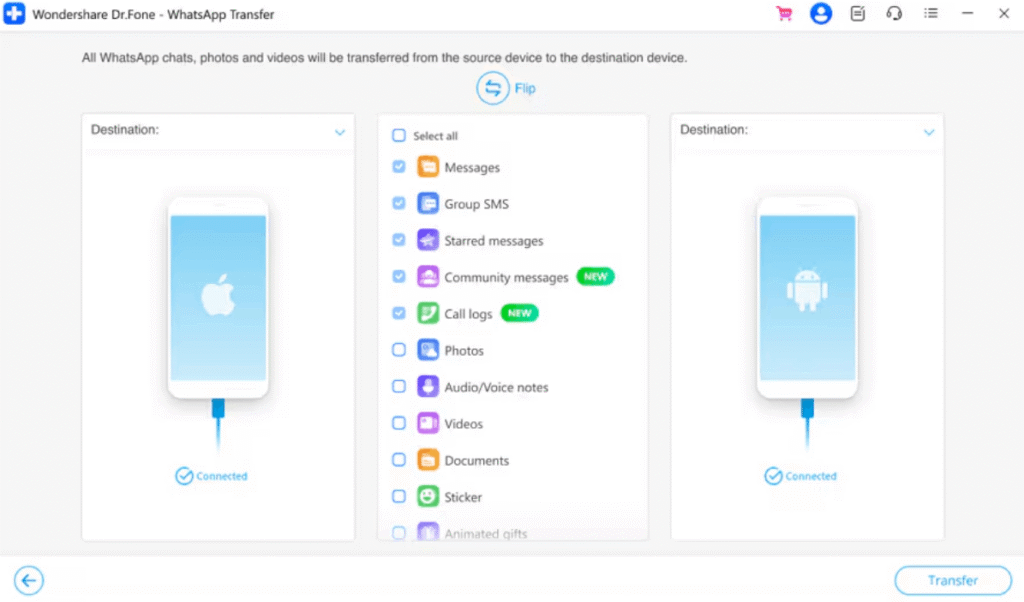
Step 3. Receive WhatsApp Data on New Phone
This innovative WhatsApp transfer tool will then initiate moving your selected WhatsApp data to your new phone.

Conclusion
In summary, upgrading your phone no longer needs to erase WhatsApp memories or disrupt conversations. Proper backups and contact synchronization help ensure chats remain complete with names displayed correctly. Tools like Dr.Fone – WhatsApp Transfer handle complex cross-phone migrations reliably and consistently. Moreover, a precise guided transfer method saves time and reduces errors, preserving stickers and media that are missed. Therefore, choosing Dr.Fone suits users who value simple steps and safe migration.
Also Read: A Step-by-Step Guide on How to Start Data Science as a Career