
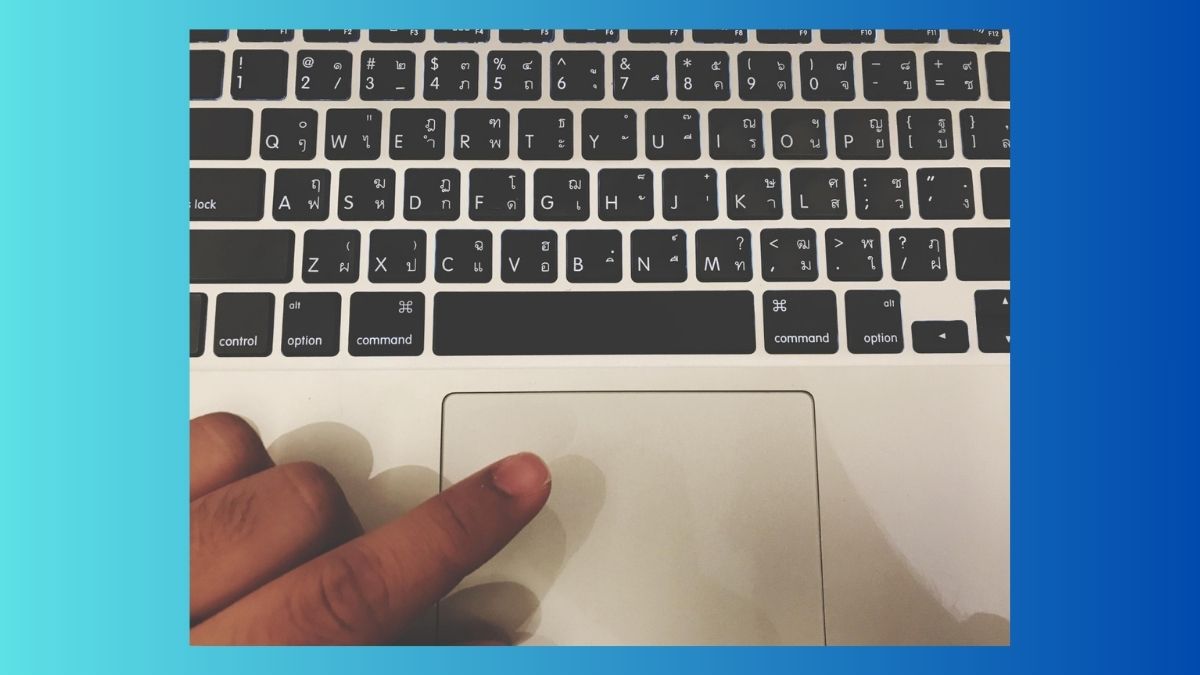
How to copy and paste on Macbook is one of the most fundamental, but also powerful, bits of action that you’ll carry out. Whether you’re copying text from one document and into another document, copying images, sending links or sorting files, learning to copy and paste in the correct way can save you a great deal of time.
If you are starting from using macOS or a new user from Windows, you will feel that the process is easy to use as soon as you know the shortcuts and the options available. This is a guide of all these common ways of how to copy and pasting on a MacBook.
Table of Contents
Copy and Paste with Keyboard Shortcuts
The fastest and the most popular way of copying and pasting on the Macbook is the keyboard shortcut method.
To copy:
- Select the text, image, or file
- Press Command (⌘) + C
To paste:
- Click where you want to put the content
- Press Command (⌘) + V
This works in almost all apps including browsers, documents, emails and notes & file folders.
Cut and Paste on a MacBook
And if you want to move some content around, instead of taking some content and copying it several times, use cut and paste.
To cut:
- Select the item
- Press Command (⌘) + X
To paste:
- Click the destination
- Press Command (⌘) + V
Cut is used to delete the content from its original position and paste it to the new position.
Copy and Paste Using Track pad/Mouse
And if you do not want to use your keyboard shortcuts, then macOS supports you to copy and paste with the trackpad or mouse as well.
Here’s how:
- Highlight the Text Select the File
- Right-Click (or two finger tap trackpad)
- Click Copy
- Move to the destination
- Right click again and click on Paste
This is a particularly good way of being able to use the trackpad as a beginning, or with your trackpad casually.
Copy and Paste Files in Macbook
Copying files works in exactly the same way that copying text will.
You can:
- Click a file once to select it
- Press Command (⌘) + C
- Go to the destination folder
- Press Command (⌘) + V
The original file remains in the original location with a copy in the new location.
To move instead of copy the files, you will use the Command (the Mac OS X version of Microsoft Windows uses Command and Windows uses rectangle) + X and then paste.
Paste Without Formatting
Sometimes when you paste text along with it come fonts, colors ,and formatting you don’t want. macOS provides you with the ability to paste text without formatting.
To do this:
- Copy the text as usual
- Press Command (⌘) + Shift + Option + V
This simply pastes the text in the contents, that matches the style in the destination document.
Getting Copy and Paste Images to Macbook
You can copy pictures from web sites, documents/folders.
Steps:
- Right-click the image
- Select Copy Image
- Paste as (Command) (Add New Command) and paste in the Control where you want it e.g. Notes, Pages, Messages or email
- You can also drag images directly to supported applications.
Using the Menu Bar to Copy and Paste
There are also copy and paste in mac os menu bar.
- Select content
- Click the Edit from the top of the screen
- Choose Copy, Cut, or Paste
This one is good for you, if you forget the shortcuts or like to look at menus.
Some Common Copy and Paste Problems (And Solutions)
Sometimes the copy and paste will not work as you would think it is supposed to be. Here are quick fixes:
- Be sure that you really have the content selected
- Try restarting the app
- Restart your Macbook if you do not this works
- Check app somewhere if copy between apps does not work
- Most problems are not permanent and do not last for long.
Conclusion
Copying and pasting in MacBook is not a tough task however, you have to master the shortcuts and methods. Whether you’re using the keyboard commands, the trackpad, or the menu options, macOS offers you flexible ways of moving things fast and efficiently.
Once you get used to the basics, the overall day-to-day activities like writing, file organization and sharing information among others will be much easier. Mastering copy and paste isn’t a little – but it is a big difference in how confidently you use your MacBook.
Also Read: How To Take A Screenshot On A Chromebook : Easy Instructions