
Strikethrough is one of those types of formatting tools that do not look like a lot, but that can actually be pretty powerful in day-to-day work. Whether it’s used to denote completed tasks, highlight revisions or cancel out outdated information, the clean strikethrough often says more than text deletion. Across the platforms such as Microsoft Office, Google’s productivity suite and Gmail, there are keyboard strikethrough shortcut (s) to quickly and efficiently apply this effect – as long as the correct combinations of keys are known.
This type of reviewer-style breakdown looks at each of the major strikethrough shortcuts available within popular applications, on Windows and on Mac, as well, pointing to where shortcuts work in an intuitive manner, and where they are too complex.
Table of Contents
Understanding Strikethrough Effect
This is the strikethrough effect of adding a horizontal line on selected text. From a usability point of view, it has a wide usage on documents, spreadsheets, presentations and emails, to indicate edits without ‘losing’ context. In collaborative environments it’s in strike-through that it often works as a visual cue that something has been revised or _deprecated but is still worth referencing.
What is most notable about each platform is that there are no shortcuts to the one-size-fits-all approach. Instead though, there’s a logic to each ecosystem and that makes it seem very smooth in some apps and bumpy in others.
Strikethrough Shortcuts in Microsoft Office Programs
Some of the patterns of shortcuts are shared by Microsoft Office applications, but there are some obvious differences based on the program and operating system.
Microsoft Word (Windows and Mac)
Windows users who work on Microsoft Word can enable text to strikethrough by selecting the text and pressing Alt + H + 4. The keys do not have to be pressed simultaneously which makes the shortcut more forgiving than at first glance.
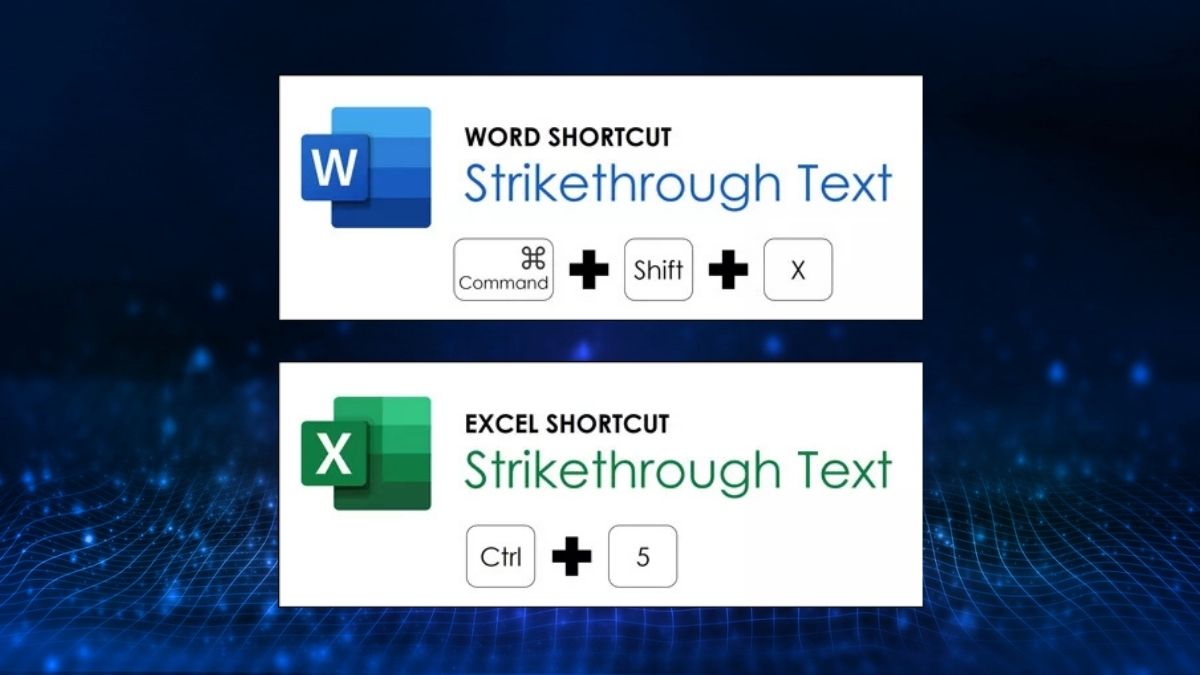
On a Mac OS system it’s not so complicated. The text is then added and then the strikethrough is added by pushing Command + Shift + X immediately. If we had a look at the shortcuts for Mac and Windows from the director’s point of view the Mac shortcut would be speedier and more easily remembered than the shortcut in Windows.
Microsoft Excel (Windows and Mac)
Excel has one of the consistent experiences between platforms. Ctrl + 5 in Microsoft Excel. If Cell/text is selected and Ctrl + 5 is pressed then strikethrough is done in both Windows and MAC.
This consistency makes Excel’s shortcut one of the most user-friendly shortcuts in the Microsoft ecosystem particularly for users coming over to another operating system.
Microsoft PowerPoint (Windows and Mac)
So, again in Microsoft PowerPoint users running Windows 6 use Alt + H + 4 after selection of text. Whilst functional it is based on the same multiple-step logic as Word which may slow down frequent users.
In the case of Mac, there is no one-step shortcut for PowerPoint. Users would have to type Command + T, then click on Strikethrough from the dialog box and then click OK. Compared to other apps, this appears less than efficient and dated.
Microsoft Outlook (Windows and Mac)
Strikethrough in Microsoft Outlook is a bit more complicated in the Windows operating system. Users have to select some text and press Ctrl+D and then Alt+K then enter. This is perhaps the least intuitive shortcut of a multi-command sequence in the Office suite.
On Mac it is similar to PowerPoint – Command+T > Click on “Strikethrough” > Confirm. Although in line with other Mac Office programs, it still lacks the immediacy of Word or Excel.
Strikethrough in Google Docs, Sheets, and Slides
Google’s online office tools are also noteworthy for the consistency and simplicity from app to app.
In Google Docs, Google Sheets and Google Slides: Windows users might be able to utilize the strikethrough feature by selecting the text and pressing Alt + Shift + 5.
Mac users use the Command + Shift + X which is actually the same shortcut as Microsoft Word on Mac. From a reviewer’s point of view, Google’s shortcuts appear to be well thought out as well as easy to remember, especially for users who are switching between Docs, Sheets and Slides a lot.
Applying Strikethrough in Gmail on the Web
Gmail has the same shortcut logic as the rest of the Google productivity tools.
In Gmail explicitly select text in the email composer and press Alt + Shift + 5 (in Windows) or Command + Shift + X (in MAC), to get strikethrough instantly.
This consistency across Google’s ecosystem is a huge win in usability, which is a bit less of a learning curve for individuals who are heavy users of keyboard shortcuts.
Windows vs Mac: A Shortcut Experience Review
When comparing platforms, macOS generally offers cleaner and more memorable strikethrough shortcut, especially in Word and Google apps. Windows shortcuts in Microsoft Office, for instance, are often reliant upon ribbon navigation logic and while not as fast to navigate in this way, when you get used to it, it still is very powerful!
Google’s approach by contrast wants to put uniformity across applications/operating systems first, which makes it easier for users to build muscle memory.
Final Thoughts
Strikethrough shortcuts may be one little detail out of productivity, but they add up to dramatic amounts in day-to-day workflows. Microsoft Excel and Google Office tools are the easiest kinds of experiences, Outlook and PowerPoint are just lagging behind by one or two due to multi-step processes.
Having knowledge of all strikethrough shortening features throughout MS Office, Google Docs and Gmail is the key to smoother editing, clearer collaboration and meeting the requirement of mouse-based formatting. For those users who take speed and accuracy as their priorities, we consider that learning these shortcuts is well worth the effort.
Also Read: KLR Login – An Easy and Positive Guide on How To Access Your online Portal